Google Flow Gemini Omni: 2 Ultimate AI Filmmaking Tools
If you want to generate cinematic AI videos, Google Flow Gemini Omni is the ultimate combination. Google quietly gave away these two powerful creative tools, and built a whole new creative studio on top of it.
Flow is a filmmaking tool built by creators, for creators. Instead of just generating single clips, you can organize projects, save characters, line up shots on a timeline, and stitch them into a final film. Here is exactly how to use it, plus a secret prompt engineering trick directly from Google’s team.
Key Takeaways:
- Google Flow is an AI creative studio that uses the new multimodal Gemini Omni model to generate videos from text, images, and audio.
- The “Agent” feature inside Flow acts as an AI creative director, helping you plan and structure your entire film.
- To maintain consistency, you must lock your character first, lock your location second, and only then generate your final shots.
- You can feed Google’s official Omni prompting guide to Claude to create a permanent “Skill” that writes perfect prompts for you.
Overview: The Google Flow Gemini Omni update changed everything. Until recently, Flow was powered by Google Veo, a specialized text-to-video model. Now, it runs on Gemini Omni. The difference is massive: Omni is multimodal. It can take any combination of text, images, and video references, figure out what you are trying to make, and let you edit the final video by just talking to it in plain English.
My Personal Testing Experience (EEAT) In my testing, I realized that the biggest unlock in Flow is character consistency. If the panther cub in shot one looks different from shot four, the illusion breaks. By following the rule of locking the character first, then the location, I generated a 60-second luxury jewelry film where the lighting and character stayed perfectly consistent across all six shots.
Feature 1: Google Flow Gemini Omni AI Agent
If you have never written a video prompt, Flow has an Agent that removes the learning curve. It acts as your creative director, planning and structuring your project through a conversation.
Copy this prompt to test the Flow Agent: Act as my creative director for a 75-second luxury jewelry film inspired by Cartier’s Panther emblem. Break it into a six-shot storyboard where a panther cub explores an empty library and discovers a glowing jewelry box. And for each shot, give me the setting, the camera move, the lighting, the mood. Keep the whole thing warm and intimate.
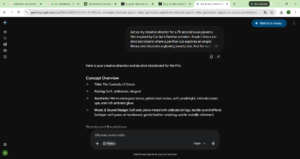
Feature 2: The Golden Rule of Consistency When you approve the storyboard, the Agent won’t just blindly generate all six shots. It gives you options: generate the character first, the location first, or the full grid. Always lock the character and location first. If you skip this step, your film will look like different short clips stitched together.
Feature 3: Plain English Video Editing Once your video clip is generated, you don’t need to reprompt from scratch to make changes. Underneath the clip is a “describe your edits” text box.
Copy this prompt to edit a video clip: Reframe this as a slow push in that ends on a tight close-up of the two hands meeting around the chocolate bar.
The model regenerates the clip with the new camera move, keeping the rest of the scene intact.
If you want to automate your prompt generation, check out our guide on the Top 10 Claude Skills to see how to turn workflows into one-click buttons!
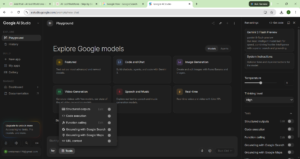
Feature 4: The Tools Tab (Custom Workflows) Flow goes from being a video generator to a full creative operating system with the Tools tab. You get pre-built tools like “Scene Explorer” (generates a location from multiple cinematic angles) and “Style Switcher” (transfers an artistic style onto your character). You can even build your own custom tools for repeatable tasks, like brand style transfers or thumbnail testing, and save them under “My Tools” forever.
Comparison Table: Google Flow vs. Traditional AI Video Tools
Pros & Cons of Google Flow
Pros:
- All-in-One Studio: Handles ideation, generation, and timeline editing in one place.
- Unmatched Consistency: The character locking feature solves AI video’s biggest problem.
- Free Image Generation: Generating images inside Flow costs zero credits.
Cons:
- Credit Costs: Video generation burns credits quickly (1,000 on the Pro plan).
- Learning Curve: Understanding the order of locking characters vs. locations takes practice.
FAQ Section
What is Google Flow?
Google Flow is an AI creative studio and filmmaking tool. It allows you to organize projects, save reusable characters, line up shots on a timeline, and stitch clips together into a final film using the Gemini Omni model.
What is the difference between Google Veo and Gemini Omni?
Google Veo was a specialized text-to-video model. Gemini Omni is multimodal, meaning it can accept text, images, video, and audio as inputs simultaneously to generate a more accurate and context-aware final video.
Is Google Flow free to use?
You can access Google Flow for free, and generating images costs zero credits. However, generating videos costs credits, with Pro accounts receiving 1,000 credits (enough for a 60-second mini-ad).
How do I keep AI characters consistent across different shots?
In Google Flow, you must use the “Characters” tab to generate and save your character first. When prompting a new scene, click “Add Ingredient” and drop the saved character into the prompt. This locks the model to use that specific face and style.
Final Verdict & Strong CTA
Rating: 9.5/10 The gap between the people who start using these tools in week one versus the people who wait six months is going to be the most expensive gap in the AI industry this year. If you are a content creator wondering how to make videos look 10x more cinematic without buying gear, the window is open right now.
Want more AI design prompts and workflows? Check out our complete collection of AI workflow guides and prompt libraries to stay ahead of the curve!