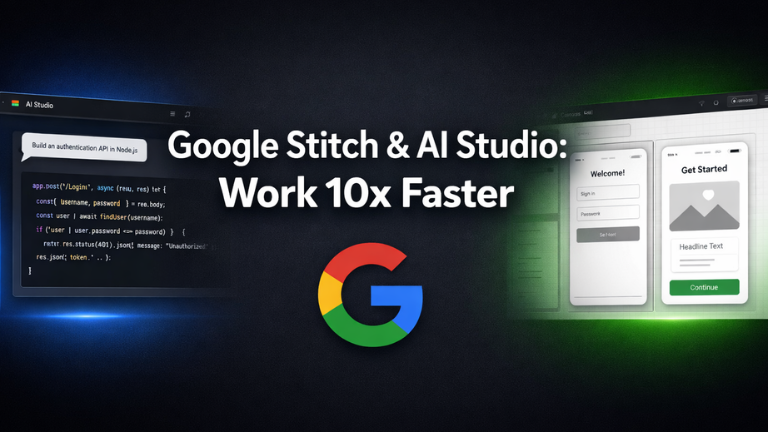
How Google’s Free AI Tools Just Replaced ChatGPT and Claude
If you have ever asked AI to build you an app or a website, you know the biggest problem: the result looks generic. Every screen comes out looking slightly different, the buttons don’t match, and the spacing feels random. It works, but it doesn’t look professional.
Hiring a designer costs thousands of dollars and takes weeks. But Google just released two completely free AI tools that solve this entirely: Google Stitch and Google AI Studio.
Here is the exact workflow to design and launch a fully functional app without writing a single line of code or hiring a designer.
Phase 1: The Design System (Google Stitch)
Most AI tools fail at design because they don’t have a “rule book”. They just guess what looks good. Google Stitch fixes this by creating a design system before it builds any screens.
- The Prompt: Go to stitch.withgoogle.com, start a new project, and type your prompt. Example: “Build a simple travel planner app called Travel Go. I need a landing page with a hero section, destination search, trip cards, and a dashboard with a map view and budget breakdown. Modern, warm, photo-heavy aesthetic.”
- The Rule Book: Before generating screens, Stitch creates a design system (e.g., naming it “Golden Hour”). It locks in the colors, fonts, button styles, and spacing so that every screen it builds looks perfectly consistent.
Phase 2: The “URL Trick” Nobody is Using
You cannot prompt your way to a specific aesthetic. If you want your app to look like a specific website, don’t try to describe it—just show it to the AI.
Find a website whose design you love, copy the URL, paste it directly into the Stitch prompt bar, and hit generate. Stitch will read the entire website, pull out the hex colors, fonts, and spacing, and generate a complete design system based on that exact aesthetic.
Phase 3: Fixing Mistakes Without Regenerating
The worst part of traditional AI builders is that if one button or image is wrong, you have to regenerate the entire app and hope the next version is better.
In Stitch, you just fix the specific element. If text is blending into the background, you can literally type: “Add a dark overlay behind the hero text and make the font bolder.” It fixes exactly that, without touching the rest of the design. You can even click a section and hit “Generate Variations” to see different layouts (Refine, Explore, or Reimagine) while keeping the design system intact.
Phase 4: Turning Design Into Reality (Google AI Studio)
Now you have a beautiful, professional design. But it’s just a picture. You can’t click anything. That’s where Google AI Studio comes in.
- Export: In Stitch, click the “Export” button in the top right and select “AI Studio.”
- Build: AI Studio opens in a new tab with all your screens already loaded. Hit “Build.”
- Add Functionality: The design won’t break. Now, you can prompt it to add real features. Type: “Help me build the functionality to type in the departure place, destination, and dates so I can search and get trip information.”
- Deploy: Once your app is working, just click “Publish” to get a live URL you can share with the world.
The Honest Take: Does this replace designers?
No. These tools cannot replicate true taste, and exceptional designers are still safe. But for founders, marketers, and non-technical builders, this raises the floor. You no longer need a designer to get professional-looking results in under an hour.
Have you tried Google Stitch yet? What app are you going to build? Let me know in the comments!