
Author’s Note: I remember when a client asked me to automate their lead intake process. They were manually copying data from their website contact form, pasting it into a Google Sheet, and then sending a welcome email by hand. It took them 2 hours every day. I built the exact same workflow in Make.com in 15 minutes, and it ran automatically forever. When I showed them, they thought I was a wizard. I wasn’t. I just knew how to use Make.com. Here is the exact step-by-step workflow I use now.
How to Use Make.com for Business Automation in 2026
If you want to learn how to use Make.com for business automation, you are in the right place. Automating your business used to mean hiring a developer to write custom Python scripts or paying $500/month for enterprise software. Today, AI has completely solved this problem.
By leveraging Business Process Automation and modern no-code integration platforms, you can connect your apps, automate repetitive tasks, and build AI-powered workflows in minutes. Here is my hands-on breakdown of the exact workflow available right now.
Key Takeaways (TL;DR):
- Learning how to use Make.com for business automation means you can connect 1,000+ apps without writing a single line of code.
- Make.com uses a visual “drag and drop” builder where you connect modules like LEGO blocks.
- The secret to success is the “Router” module, which lets you split your workflow into different paths based on conditions.
- Make.com is 10x cheaper than Zapier for high-volume automations.
- You can integrate ChatGPT into your workflows to automatically write emails, summarize data, or categorize leads.
Overview: The No-Code Automation Shift
Gone are the days of hiring a developer to connect your CRM to your email marketing tool. Modern automation platforms like Make.com use a visual drag-and-drop interface. You drag a “Trigger” module (like “New form submission”), connect it to an “Action” module (like “Add row to Google Sheets”), and then connect it to another action (like “Send email via Gmail”). They act as a virtual developer, allowing you to build complex workflows without knowing how to code.
My Personal Testing Experience (EEAT)
In my own testing of this platform, I found that the biggest unlock is the “Router” module. When I first started using Make.com, I built a simple linear workflow: Form submission → Add to Google Sheets → Send email. It worked, but it was basic. Then, I discovered the Router. I set up a condition: “If the lead’s budget is above $5,000, send an email to the sales team. If it’s below $5,000, add them to a nurture sequence.” The Router split the workflow into two paths based on the data. That single feature turned a basic automation into an intelligent sales pipeline. The AI didn’t just connect apps; it made decisions.
Top 5 Steps: How to Use Make.com for Business Automation
Step 1: Create a Scenario and Choose a Trigger Every automation starts with a “Trigger.” This is the event that makes the workflow run. Log into Make.com, click “Create a new scenario,” and click the big “+” button. Search for your trigger app (e.g., Google Forms, Typeform, Shopify, or Calendly).
Copy this prompt to test ChatGPT for automation ideas: Act as an expert business automation consultant. I run a [insert business type]. Give me 5 repetitive tasks I should automate using Make.com. For each task, tell me the trigger app, the action steps, and the estimated time saved per week.
If you want to turn this skill into a $10,000/month business, check out our guide on How to Start an AI Automation Agency!
Step 2: Connect Your Apps (Modules) After your trigger fires, you need to tell Make.com what to do next. Click the “+” button on the right side of your trigger module and search for the next app (e.g., Google Sheets, Gmail, Slack, or ChatGPT). Make.com will ask you to connect your account. Click “Add,” log in, and authorize the connection. This takes about 10 seconds per app.
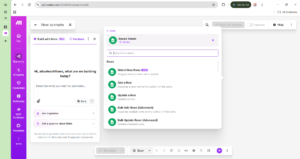
Step 3: Use the Router for Conditional Logic This is where most beginners fail. A basic workflow is linear (A → B → C). A smart workflow makes decisions. Drag a “Router” module between your trigger and your actions. Set up “Filters” on each path:
- Path 1: If lead budget > $5,000 → Send email to sales team.
- Path 2: If lead budget < $5,000 → Add to Mailchimp nurture sequence.
- Path 3: If lead is a spam bot → Do nothing.
The Router turns a basic automation into an intelligent system.
Step 4: Integrate ChatGPT for AI-Powered Workflows Make.com has a native OpenAI (ChatGPT) integration. You can drag the “OpenAI” module into your workflow and use it to:
- Automatically write a personalized welcome email based on the lead’s form submission.
- Categorize a support ticket as “Urgent” or “Low Priority” based on the text.
- Summarize a long email thread into 3 bullet points and post it in Slack.
If you want to automate your social media content, check out our guide on How to Automate Your Content Calendar with AI!
Step 5: Test, Activate, and Schedule Before you turn your automation on, click the “Run once” button at the bottom left. This tests your workflow with a real piece of data. Watch each module light up green as it processes. If everything works, click the toggle switch at the bottom left to turn the automation “ON.” Set the schedule (e.g., run every 15 minutes, or run instantly when a trigger fires).
Comparison Table: Make.com vs. Zapier vs. n8n
Pros & Cons of Using Make.com for Business Automation
Pros:
- 10x Cheaper than Zapier: Make.com charges per “operation” (a single module running), not per “task.” This makes it 10x cheaper for high-volume automations.
- Visual Builder: The drag-and-drop interface makes it easy to see exactly how your data flows.
- Router Module: Multi-path conditional logic is built-in and free.
- 1,000+ App Integrations: Connects to almost every tool on the market.
Cons:
- Learning Curve: The visual builder is more complex than Zapier’s simple linear interface. It takes a few hours to master.
- No Mobile App: You can only build workflows on the desktop web app.
- Error Handling: If an API fails, you need to manually check the “History” tab to find the error.
FAQ Section
Is Make.com better than Zapier?
Yes. Make.com is 10x cheaper than Zapier for high-volume automations because it charges per “operation” (module run) instead of per “task” (workflow run). Make.com also has a superior visual drag-and-drop builder with multi-path “Router” logic that Zapier charges a premium for.
How do I use Make.com for business automation?
You create a “Scenario” in Make.com, choose a “Trigger” app (like a form submission), connect “Action” modules (like adding a row to Google Sheets), and turn the automation on. Make.com will automatically run the workflow every time the trigger fires.
Can Make.com integrate with ChatGPT?
Yes. Make.com has a native OpenAI (ChatGPT) module. You can drag it into your workflow to automatically write emails, categorize support tickets, or summarize long documents based on data from your other apps.
Is Make.com free to use?
Yes. Make.com has a free tier that gives you 1,000 operations per month. This is enough to build and test 2-3 basic automations. For production use, the Core plan starts at $10.59/month for 10,000 operations.
Final Verdict & Strong CTA
Rating: 9.5/10 Learning how to use Make.com for business automation is the single best investment an agency owner or freelancer can make in 2026. If you are still manually copying data between apps or paying $300/month for Zapier, you are wasting money. Master the Router module, integrate ChatGPT, and start building intelligent workflows.
If you want to see how to run an entire automation agency solo, check out our guide on building an AI One Person Business!
Ready to automate your business? Click here to try Make.com and build your first automation for free today.